✅ Extension Now Available on Chrome Web Store!
The easiest and recommended way to install YoutubeTS Chrome Extension is directly from the official Chrome Web Store.
➕ Add to Chrome from Web Store⚠️ About Enhanced Safe Browsing Warning
When installing from Chrome Web Store, some users may see a warning that says:
This is completely normal and safe. Here is why:
- ✓ This warning appears only for newer extensions on Chrome Web Store
- ✓ The extension has been reviewed and approved by Google
- ✓ It is 100% safe to click "Continue to install"
- ✓ This warning only appears if you have Enhanced Safe Browsing enabled
- ✓ As more users install the extension, this warning will disappear automatically
- ✓ Our extension only requests minimal permissions needed to function
✅ Bottom line: You can safely click "Continue to install" and proceed with confidence!
📦 Installation Methods
Choose the installation method that works best for you:
Method 1: Chrome Web Store
✅ Recommended
• One-click installation
• Automatic updates
• Most secure
Method 2: Manual Install
For Advanced Users
• Developer mode required
• Manual updates
• For testing
🌟 Method 1: Install from Chrome Web Store (Recommended)
This is the easiest and safest way to install the extension. Follow these simple steps:
Step 1: Open Chrome Web Store
Click the button below or visit the Chrome Web Store page:
Open in Chrome Web Store →Step 2: Click "Add to Chrome"
On the Chrome Web Store page, you will see a blue "Add to Chrome" button in the top-right corner.
Click this button to start the installation.
Step 3: Handle the Enhanced Safe Browsing Warning (If It Appears)
If you see the warning message, do not worry! This is normal for new extensions.
- Read the warning message
- Click "Continue to install" (it is safe)
- The installation will proceed normally
Note: If you do not see this warning, that is fine too! It only appears for users with Enhanced Safe Browsing enabled.
Step 4: Confirm Installation
A popup will appear asking you to confirm. Click "Add extension".
The extension will be installed within seconds.
✅ Step 5: Installation Complete!
The extension is now installed and ready to use. You will see:
- ✓ A confirmation message that the extension was added
- ✓ The YoutubeTS icon may appear in your Chrome toolbar
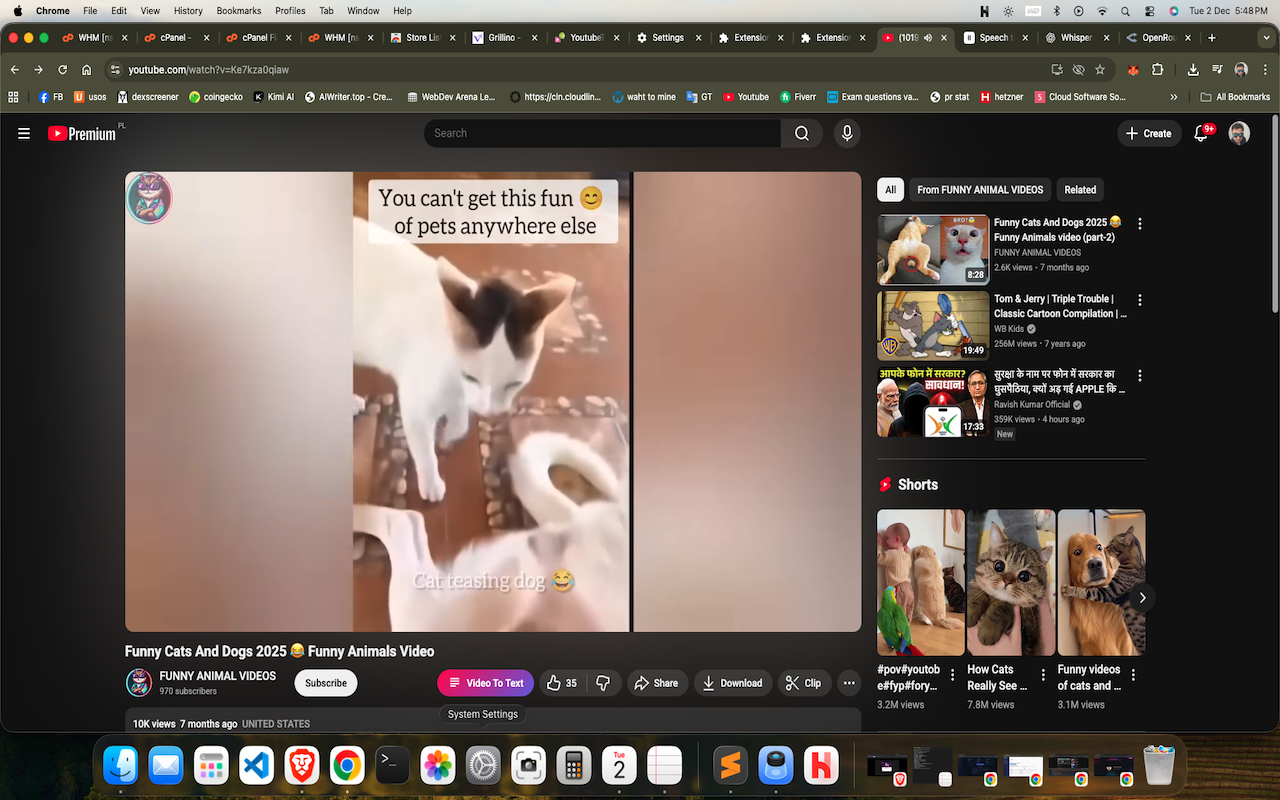
- ✓ Go to any YouTube video to see the "Video To Text" button
How to Use the Extension
- Go to any YouTube video
- Look for the "Video To Text" button next to the Like/Dislike buttons
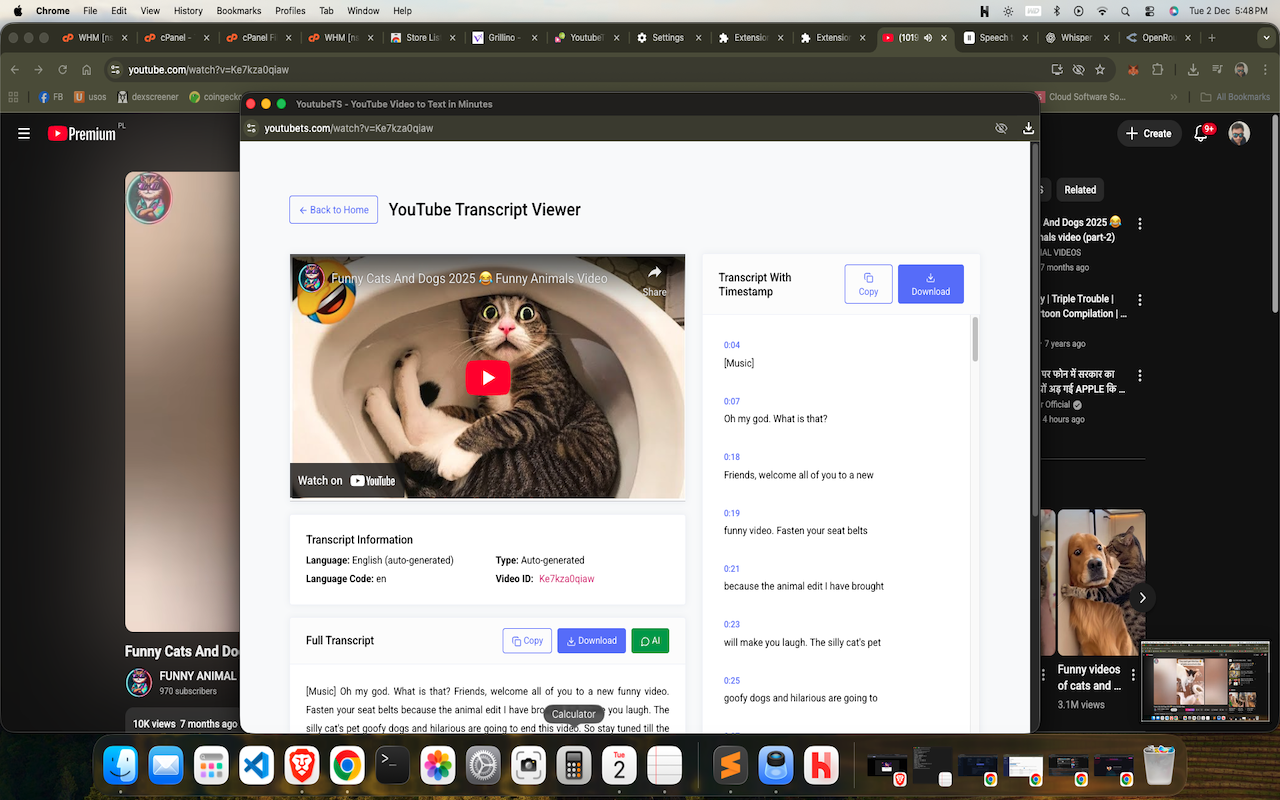
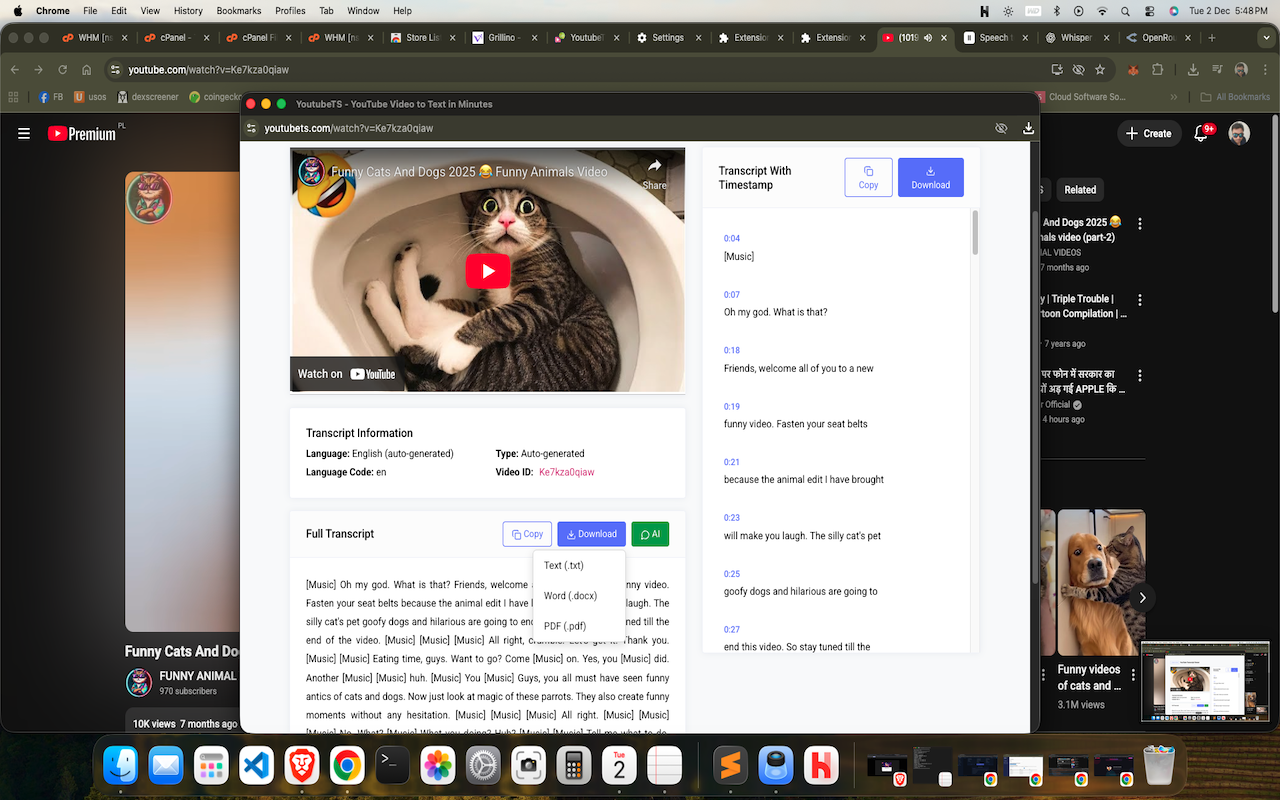
- Click it to instantly open the transcript on YoutubeTS
- Download, copy, or use AI features on your transcript
🔧 Method 2: Manual Installation (Developer Mode)
⚠️ Important Notice
Manual installation is only recommended for:
- Developers who want to test or modify the extension
- Advanced users who prefer manual control
- Users who cannot access Chrome Web Store
Most users should use Method 1 (Chrome Web Store) above for automatic updates and easier installation.
Step 1: Download the Extension
Download the latest version:
⬇️ Download Extension v1.0.4Step 2: Extract the ZIP File
- Locate the downloaded ZIP file in your Downloads folder
- Right-click the file and select "Extract All..." (Windows) or double-click (Mac)
- Choose a location to extract the folder (remember this location)
- You should now have a folder containing the extension files
Step 3: Enable Developer Mode in Chrome
- Open Google Chrome
- Type
chrome://extensionsin the address bar and press Enter - Toggle ON the "Developer mode" switch in the top-right corner
Step 4: Load the Extension
- Click the "Load unpacked" button (appears after enabling Developer mode)
- Navigate to the folder where you extracted the extension
- Select the entire folder and click "Select Folder"
- The extension should now appear in your extensions list
✅ Success! The extension is now manually installed and ready to use.
Step 5: Pin the Extension (Optional)
- Click the puzzle icon (🧩) in Chrome toolbar
- Find "YoutubeTS Video to Text"
- Click the pin icon to keep it visible in your toolbar
🔧 Troubleshooting
Extension not showing on YouTube?
- Refresh the YouTube page ( F5 or Cmd+R)
- Make sure the extension is enabled in
chrome://extensions - Check that you are on a YouTube video page (not the homepage)
- Try disabling and re-enabling the extension
Button not working?
- Make sure you are logged into your YoutubeTS account for full functionality
- Some videos may not have transcripts available
- Try refreshing the page
- Check your browser console for any error messages
Enhanced Safe Browsing warning keeps appearing?
- This is normal - simply click "Continue to install"
- The warning will eventually disappear as the extension gains more users
- You can also temporarily disable Enhanced Safe Browsing in Chrome settings if needed
💬 Need Help?
If you encounter any issues or have questions about the extension:
- 📧 Email us at contact@youtubets.com
- 💬 Visit our Contact Page
- 📝 Check our About Page for more information
Ready to get started?
Install the extension now and start converting YouTube videos to text instantly!
➕ Install from Chrome Web Store